Why Does a Website Load but Look Unstyled? Causes and How to Fix It
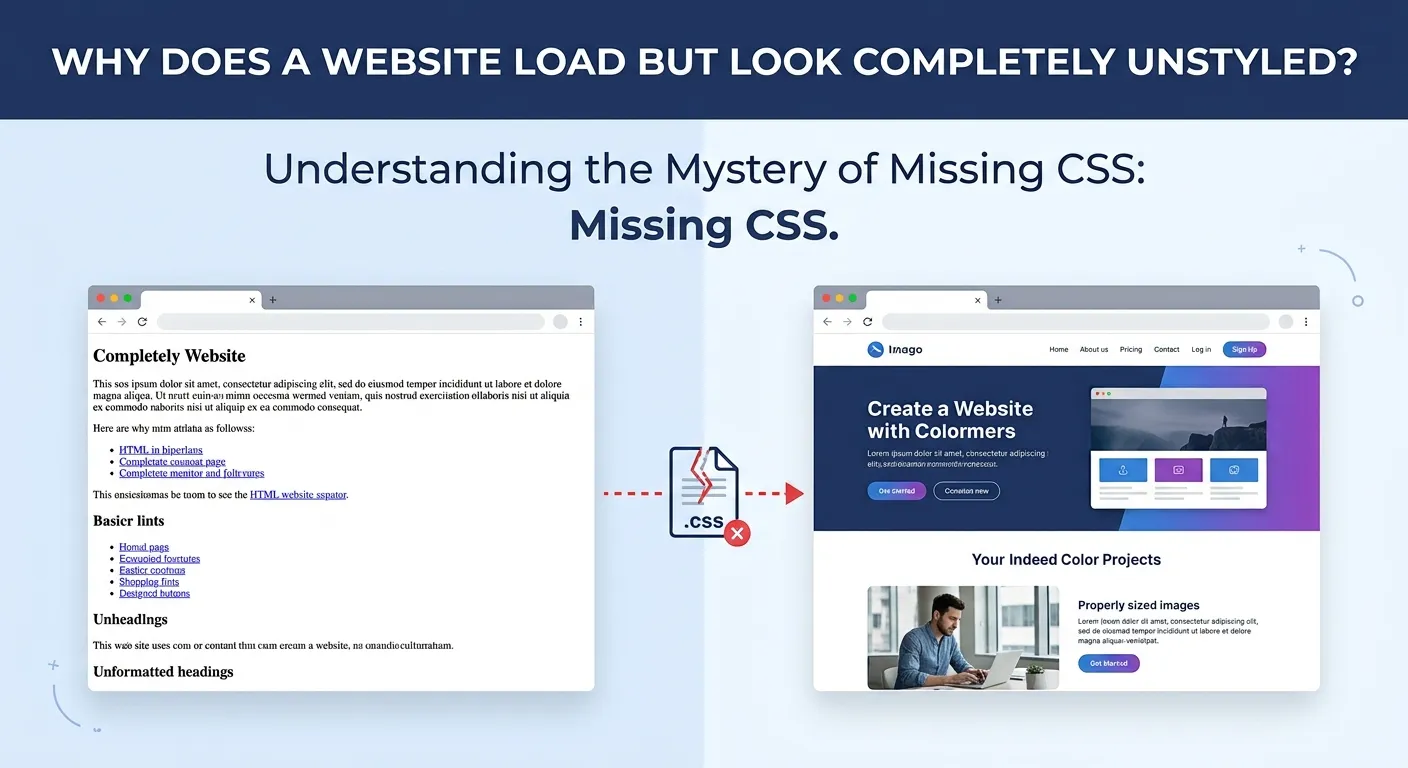
When Your Website Loads Fine but Looks Completely Broken
There's a particular kind of frustration that comes with opening your website and seeing raw, unformatted HTML staring back at you — plain text, no layout, no colors, everything stacked vertically like a document from 1994. The page loaded. The server responded. But something clearly went wrong, and it's not obvious what.
This is what developers call a "flash of unstyled content" — or FOUC — though that term technically refers to a brief flicker before styles kick in. When the styling never arrives at all, the underlying cause is almost always the same: your HTML reached the browser, but your CSS didn't. Or it did reach the browser, but the browser refused to apply it. Those two scenarios feel identical from the outside, but they require completely different fixes.
I've debugged this exact problem on everything from simple static sites to production React apps, and the cause is rarely the same twice. A website looking unstyled can mean a missing file, a blocked request, a misconfigured server, a broken deployment, or even a browser-specific quirk. Before you start randomly clearing caches or re-uploading files, it's worth understanding what's actually happening — because the fix only makes sense once you know why the stylesheet isn't being applied.
What "Unstyled" Actually Means in Technical Terms
When a browser loads a webpage, it fetches the HTML first, then parses it to discover linked resources — stylesheets, scripts, fonts, images. Each of those resources triggers a separate HTTP request. If your CSS file fails to load for any reason, the browser renders the HTML anyway, because that's exactly what it's supposed to do. It doesn't stop and wait. It doesn't show an error page. It just displays whatever it has, which is raw, unstyled markup.
So when someone says their website loads but looks unstyled, what they're really describing is a situation where the HTML response succeeded but one or more CSS requests did not. The stylesheet either wasn't found, was blocked, was delivered incorrectly, or was cached in a broken state. Each of those failure modes leaves the same visible symptom — a plain, layoutless page — but each requires a different solution.
This distinction matters enormously for troubleshooting. The page loading isn't a sign that everything is fine. It's just a sign that the HTML file itself was served correctly. Everything else needs to be verified separately.
How to Confirm the CSS Isn't Loading — and What to Look For
The first thing I do whenever I see an unstyled website is open the browser's developer tools. In Chrome, Firefox, or Edge, you can access DevTools by pressing F12 or right-clicking anywhere on the page and selecting "Inspect." From there, navigate to the Network tab and reload the page.
The Network tab shows every request the browser made during the page load — including your CSS files. You're looking for a few things. First, do your stylesheet files appear in the list at all? If they don't, the browser either never requested them (which means your HTML's tag is wrong or missing) or they were filtered out of the current view. Make sure the filter is set to "All" or "CSS" so you're not missing anything.
Once you find the CSS request, look at the status code in the Status column. This tells you exactly what happened on the server's end:
- 404 Not Found — The server couldn't find the file at that path. This usually means the URL in your HTML is wrong, the file wasn't deployed, or it's in the wrong directory.
- 403 Forbidden — The file exists, but the server is refusing access. This could be a permissions issue or a server configuration blocking the request.
- 500 Internal Server Error — Something broke on the server side while trying to serve the file. Worth checking server logs for more detail.
- 200 OK — The file was served successfully. If you're seeing a 200 but the site is still unstyled, the problem is more subtle — possibly a MIME type mismatch, a Content Security Policy restriction, or a caching issue delivering stale or empty content.
Don't overlook the Console tab either. If CSS is being blocked — for instance, because of a mixed content warning on an HTTPS site, or a Content Security Policy header rejecting the stylesheet's origin — the console will usually tell you directly. You'll see a red error message naming the blocked resource and the reason it was refused. That message alone can save you thirty minutes of guessing.
Understanding what the network response is telling you is the difference between a targeted fix and a frustrating series of random attempts. Once you know whether the file returned a 404, a 403, or a suspicious 200 with the wrong content type, you know exactly which layer of the problem to investigate next — and that's where things get more specific.
The Most Common Causes — and Why They're Easy to Overlook
Once you've confirmed that CSS isn't loading correctly, the next step is narrowing down why. In my experience, the majority of cases fall into a handful of predictable categories — and the frustrating part is that each one looks identical from the user's perspective. The page is unstyled either way. The cause, however, determines everything about how you fix it.
Incorrect File Paths in the HTML
This is the single most common culprit, especially on sites that were recently moved, restructured, or deployed to a new server. Your HTML file contains a tag pointing to a stylesheet, and that path has to be exactly right — not approximately right, not right relative to where you think the files are, but precisely correct relative to where the HTML is being served from.
A path like href="css/styles.css" is a relative path. It tells the browser to look for a css folder inside the same directory as the HTML file. If you move the HTML file one level deeper, that relative path now points somewhere completely different. A path like href="/css/styles.css" with a leading slash is root-relative, meaning it always starts from the domain root — which is more resilient, but only correct if your CSS folder actually lives at the top level of your site. Both types of paths break in different ways depending on your folder structure, and neither type breaks loudly enough to catch immediately without checking the Network tab.
When troubleshooting, copy the full URL the browser is requesting for your CSS — you can see it in the Network tab by clicking on the request — and paste it directly into your browser's address bar. If it returns a 404 or a page instead of raw CSS, you've found your problem. Adjust the path in your HTML to match where the file actually lives, and test again.
Deployment Failures and Missing Files
A subtler but surprisingly frequent issue occurs during deployment. The HTML files get pushed to the server, but the CSS files don't — because of a failed upload, a misconfigured deployment pipeline, a .gitignore rule accidentally excluding the stylesheet, or a build step that wasn't triggered. The HTML loads perfectly because it arrived on the server. The CSS returns a 404 because it simply isn't there.
This is especially common with static site generators and JavaScript frameworks that have a build step. If you deploy the source files instead of the built output, or if your build command fails silently partway through, the CSS that exists in your local environment may never make it to production. Always verify that the actual compiled or processed CSS file exists on the server — not just the source file you wrote it in, but the output file the browser is expected to download.
MIME Type Mismatches
Here's one that produces the genuinely confusing scenario where the Network tab shows a 200 status code — meaning the file was technically found and served — but the styles still don't apply. The culprit is often a MIME type mismatch. Browsers use the Content-Type header returned by the server to decide how to interpret a file. CSS files should be served with Content-Type: text/css. If your server delivers the file with the wrong content type — text/html, application/octet-stream, or something else entirely — modern browsers will often refuse to apply it as a stylesheet, even if the file contents are perfectly valid CSS.
This happens most often on custom or misconfigured web servers, on hosting environments with unusual default MIME type mappings, or when a server-side script generates the CSS dynamically but sets the wrong response header. You can check the content type by clicking on the CSS request in the Network tab and looking at the Response Headers section. If the Content-Type value isn't text/css, that's your fix — update the server configuration to serve .css files with the correct MIME type.
When the CSS Loads Fine but Still Doesn't Apply
There's a particularly confusing class of problems where your Network tab shows a healthy 200 response, the content type looks correct, and the file contents appear to be intact — yet the page still renders without any styling. This is where many developers start doubting themselves, because all the obvious evidence suggests everything should be working.
Content Security Policy Blocking Stylesheets
Content Security Policy — commonly abbreviated CSP — is a security mechanism delivered via HTTP headers that tells the browser which sources of content it's allowed to load. It's a powerful tool for preventing cross-site scripting attacks, but it's also a highly effective way to accidentally break your own site if misconfigured. If your server sends a CSP header that doesn't explicitly allow your stylesheet's origin, the browser will silently refuse to apply it. The file might download successfully, but the browser won't parse it as CSS.
The Console tab in DevTools is where you'll catch this. A CSP violation produces a red error message that's unusually descriptive — it names the blocked resource, identifies which CSP directive blocked it, and sometimes suggests what the policy would need to include in order to allow it. If you see something like "Refused to load the stylesheet because it violates the following Content Security Policy directive", that's your answer. The fix involves adjusting the CSP header on your server to permit the appropriate source, though doing so carefully is important — CSP exists for good reasons, and loosening it carelessly creates security exposure.
Caching Delivering Stale or Corrupted Content
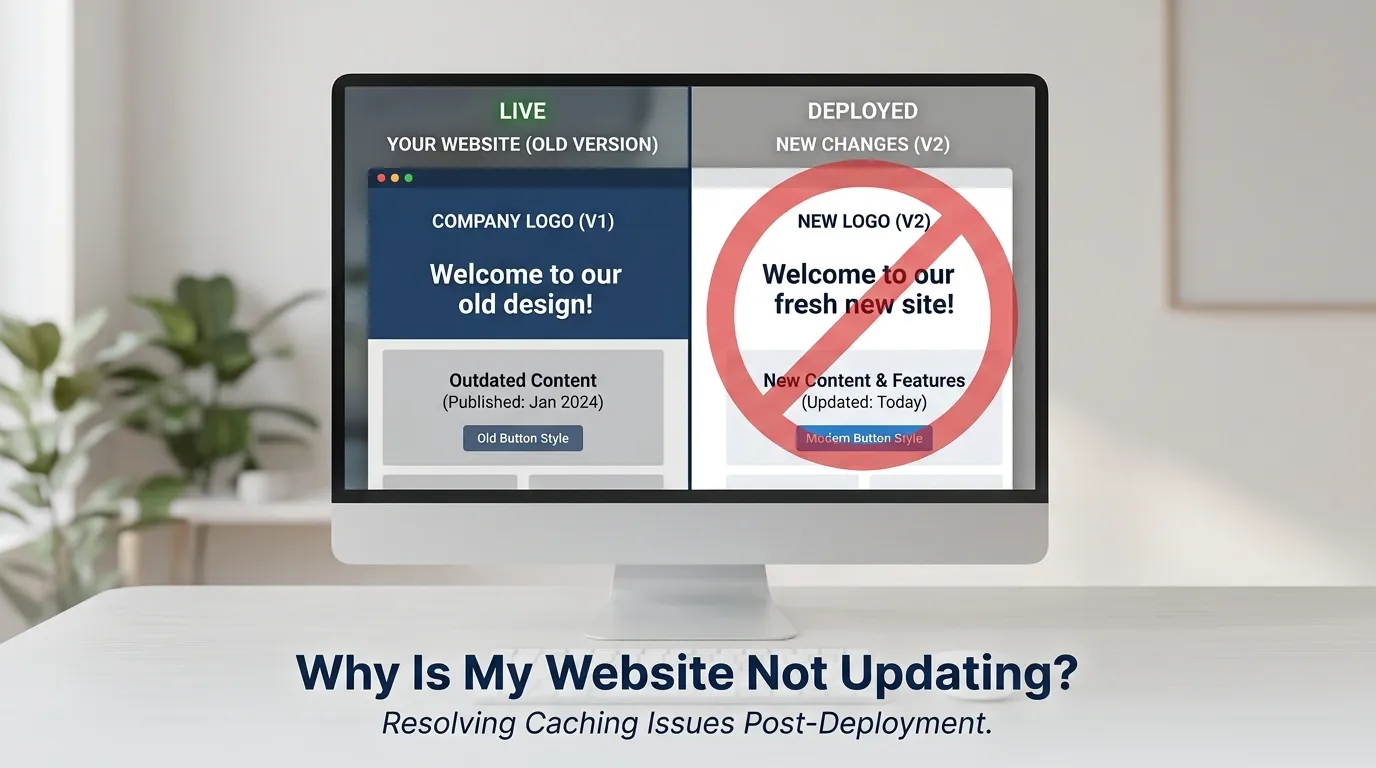
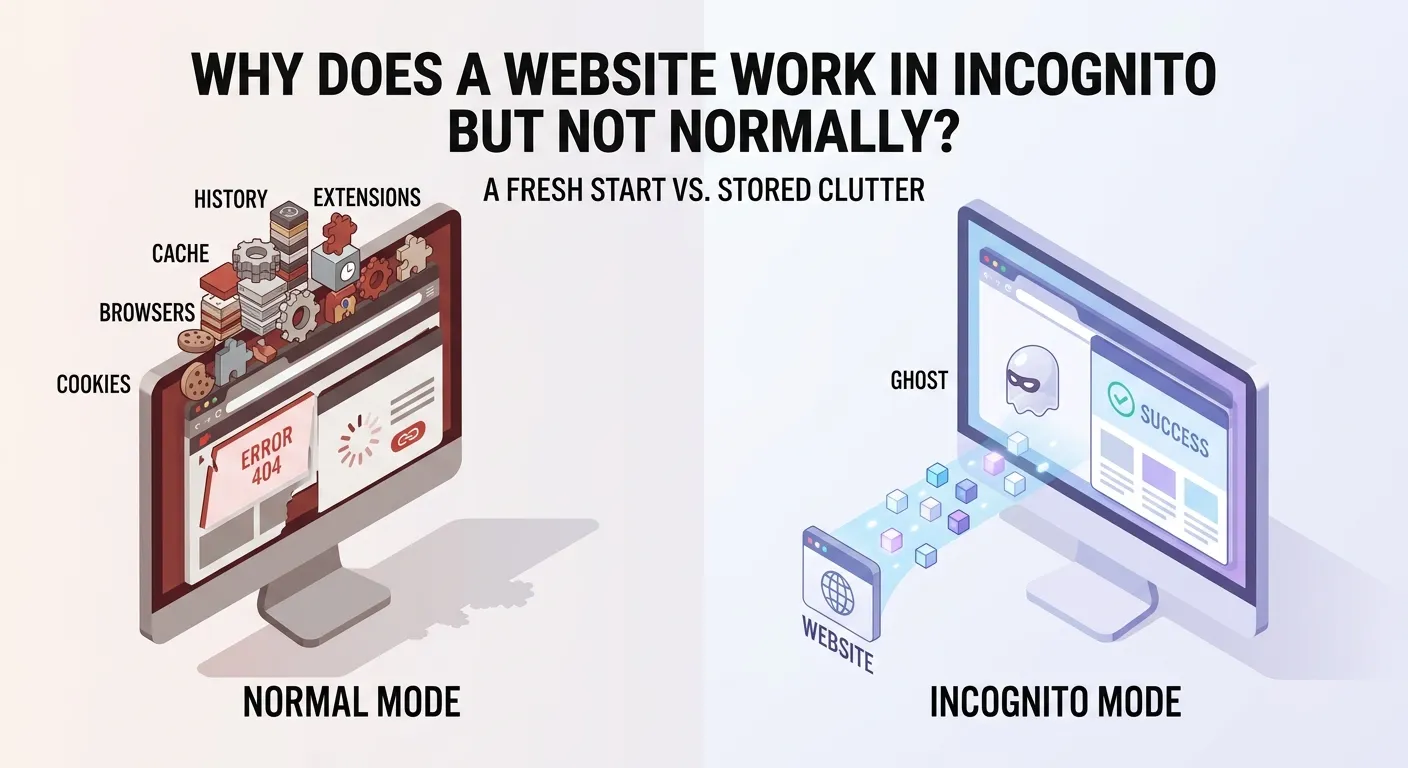
Browser caches are designed to speed things up, but they occasionally serve as an obstacle. If an old version of your CSS file — or worse, an empty file or a server error response — was cached by the browser, subsequent requests for that stylesheet may return the cached broken version without ever hitting the server again. From the Network tab, you can spot this by looking at the Size column next to each request. If a CSS file shows as "(disk cache)" or "(memory cache)" with a suspiciously small size, try doing a hard refresh by pressing Ctrl+Shift+R on Windows or Cmd+Shift+R on Mac, which forces the browser to bypass its cache and fetch fresh copies of every resource.
If a hard refresh fixes the problem, that confirms stale caching was involved — but it also means your visitors may be experiencing the same broken state without knowing how to clear it. Longer-term, this is an argument for implementing proper cache-busting strategies in your deployment workflow, such as appending a version query string or content hash to your CSS URLs. That way, whenever you push a new version of your stylesheet, the browser treats it as a brand-new file and fetches it fresh rather than serving an outdated cached copy.
Fixing It Once Instead of Every Time It Happens
Most unstyled website problems resolve quickly once you know where to look — and that's the point. The browser's developer tools tell you nearly everything you need within the first thirty seconds if you read them correctly. A 404 means the file path is wrong or the file was never deployed. A 403 means a permissions problem is blocking access. A 200 with the wrong content type means your server needs a MIME type correction. A CSP error in the console means your security headers need adjustment. A cached empty file means a hard refresh and a better deployment workflow. Each symptom points directly to its own fix.
What makes this class of problem persistently annoying isn't complexity — it's that all the failure modes look identical on the surface. The page renders without styles whether the cause is a typo in a file path, a misconfigured server, or an overzealous cache. That visual sameness is what sends developers down the wrong path, trying random solutions instead of reading what the browser is actually reporting. The network tab is not optional here. It's the first thing you should open, not the last.
There are also a few structural habits worth building to prevent this from recurring. Using root-relative paths rather than relative paths for stylesheets reduces the chance of a restructured directory silently breaking your links. Adding a content hash or version string to CSS filenames as part of your build process eliminates cache-related headaches almost entirely. Keeping your deployment pipeline verified — whether that's a simple upload check or a CI step that confirms critical assets are present before going live — catches missing files before visitors do.
Once you've seen this problem a few times and diagnosed it correctly, it stops feeling mysterious. The browser loaded your HTML because it arrived. The styles didn't apply because something in the chain between your CSS file and the browser's stylesheet parser broke down — and that chain has only a handful of links. Work through them methodically, trust what the developer tools are showing you, and the answer is almost always right there in the network response, waiting to be read.