Why Does a Website Work on Wi-Fi but Not Mobile Data?
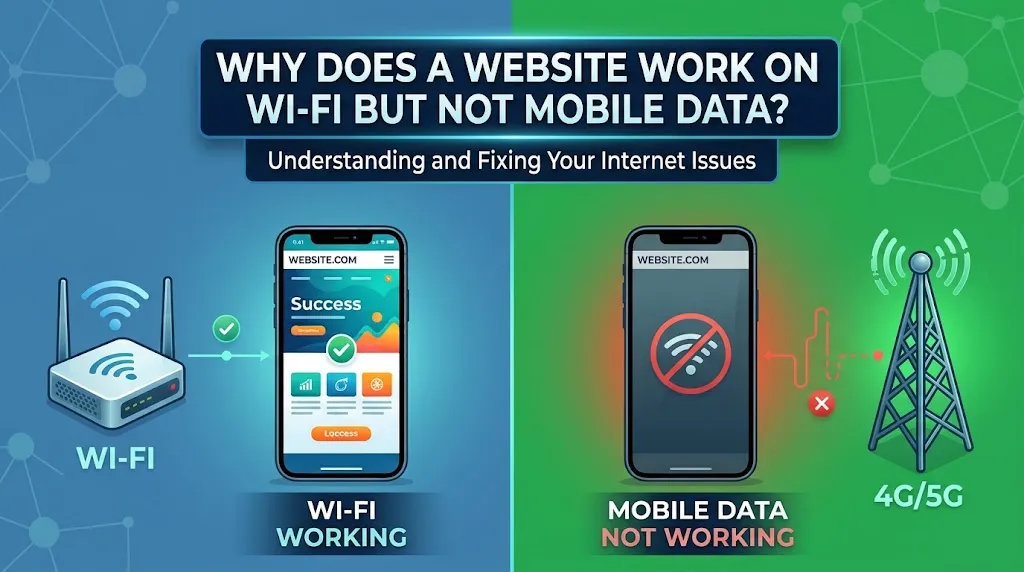
Wi-Fi and Mobile Data Are Not the Same Internet Connection
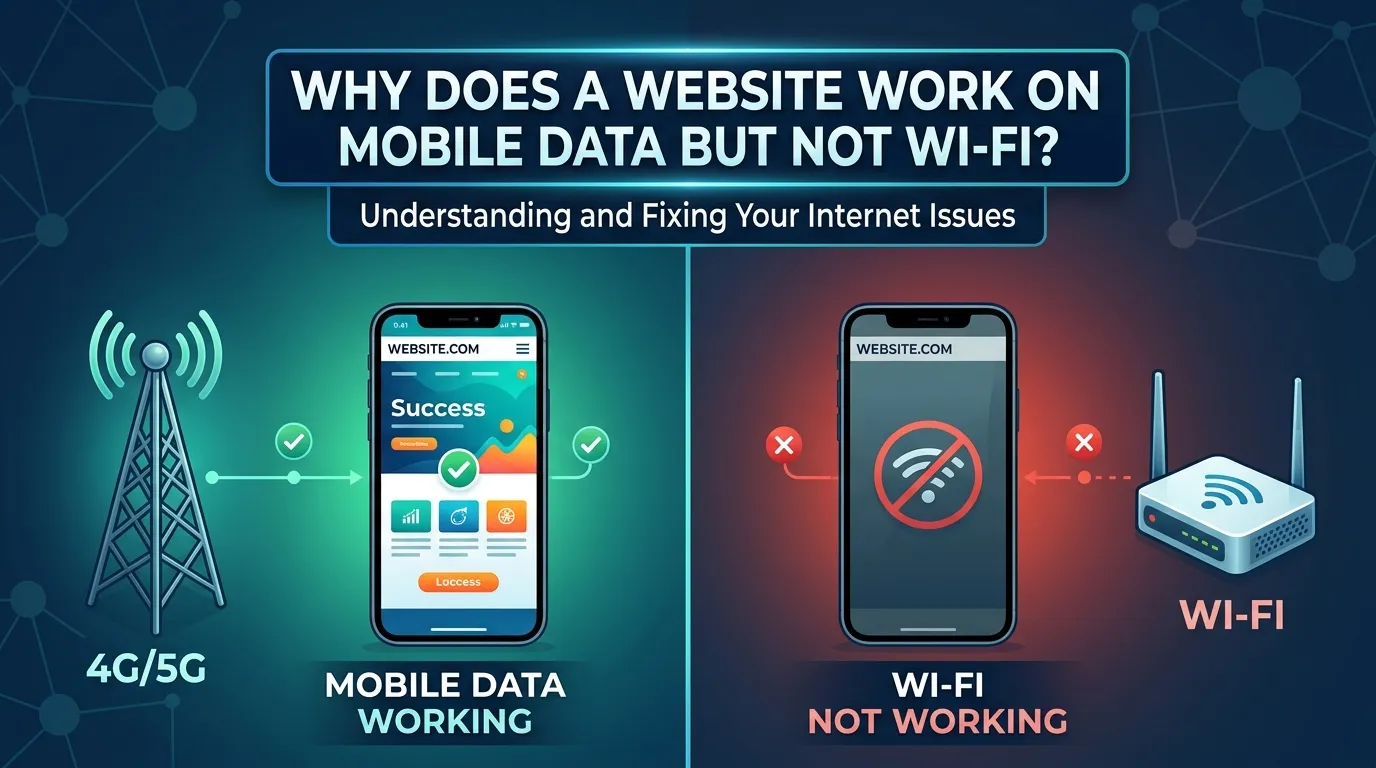
It's a genuinely confusing situation. You open a website at home over Wi-Fi and it loads immediately. You step outside, your phone switches to mobile data, and the same URL times out, throws an error, or simply refuses to load. The site hasn't gone down — you can confirm that the moment you reconnect to Wi-Fi. So what's actually happening?
Wi-Fi and mobile data are two entirely separate network paths, and a website reachable on one isn't automatically reachable on the other. They can use different DNS resolvers, different routing infrastructure, different IP versions, and in the case of mobile networks, an additional filtering layer controlled by your carrier. A problem anywhere along that chain can cause exactly what you're experiencing. Understanding which layer is responsible is the only way to fix it properly.
What Makes Mobile Data Different From Wi-Fi at a Network Level
When your phone connects to Wi-Fi, it typically uses your home router's DNS resolver and routes traffic through your broadband provider's infrastructure. Mobile data works differently. Your traffic passes through your carrier's own network, which has its own DNS servers, routing tables, and often content filtering systems that home broadband simply doesn't have.
One of the most common causes of a mobile-only failure is a DNS problem specific to the cellular network. DNS translates a domain name into an IP address your device can connect to. If your carrier's DNS server returns an incorrect result, fails to resolve the domain, or responds slowly, the site will appear broken even though nothing is wrong with the website itself. The same domain resolves fine on Wi-Fi because a different DNS server handles the request there.
Carrier-level filtering is another factor absent from most home networks. Mobile operators in many countries are legally required to block certain content categories, and some carriers apply additional commercial filtering on top. If a website has been flagged — correctly or mistakenly — it may be inaccessible on that carrier's network while loading fine everywhere else. The block doesn't always produce a clear error message; sometimes the connection simply times out, which looks identical to a server being unreachable.
There's also the IPv4 versus IPv6 question. Most mobile networks now support IPv6 and some prefer it for new connections. If a website's server handles IPv6 poorly, or if there's a routing issue on the IPv6 path specific to your carrier, the site may fail on mobile data while working normally on Wi-Fi. This tends to affect specific sites rather than everything at once.
Start Here: A Practical Way to Narrow Down the Cause
Before drawing conclusions about your carrier, your device, or the website, run a short diagnostic sequence. First, confirm the basic pattern by opening the same URL on both Wi-Fi and mobile data, back to back, with Wi-Fi fully disabled during the mobile test. If the site loads on Wi-Fi and fails on mobile data consistently, you have a genuine connectivity difference to investigate.
Next, check whether the problem affects one site or multiple sites on mobile data:
- All websites fail on mobile data — the problem is with your device's mobile connection, your SIM, or your carrier's network in general.
- Most sites work but one doesn't — the issue is specific to that site's DNS resolution, routing path, or accessibility on your carrier's network.
- The site loads slowly or intermittently — could be congestion, a routing inefficiency, or a geographic content restriction affecting cellular IP ranges.
If other sites work but one specific site doesn't, toggle airplane mode on and off to force a fresh connection and a new DNS result. This resolves transient DNS failures more often than you'd expect.
If the site still fails, temporarily disable any VPN, proxy, or Private DNS setting on your device. These tools intercept DNS requests and route traffic differently, and they can behave inconsistently across network types. A VPN that works well on Wi-Fi might route mobile traffic through a congested or blocked server. Turning these off temporarily tells you whether they're contributing to the problem. Also try a different browser to rule out cached data or extensions as a variable.
When the Problem Lives Inside the Carrier's Network
Once you've ruled out your device and confirmed the issue is specific to mobile data, direct your attention to the carrier's network. This is where the majority of persistent, site-specific failures originate. Carriers route mobile traffic through infrastructure that includes DNS resolution, deep packet inspection, content classification systems, and sometimes transparent proxies that intercept HTTP requests without announcing themselves. Any of these can cause a particular website to fail reliably on mobile data while remaining accessible elsewhere.
One approach worth trying is changing your DNS resolver while on mobile data. Android's Private DNS setting lets you configure a system-wide resolver. If you haven't set one, your device is using whatever DNS server your carrier assigns by default. Switching to a public resolver like Cloudflare's 1.1.1.1 or Google's 8.8.8.8 can bypass a faulty or filtering carrier DNS server entirely. If the site loads after this change, the carrier's DNS was blocking or misresolving the domain — keep the custom resolver in place.
If changing DNS doesn't help, a VPN becomes a genuinely useful diagnostic tool. When you route traffic through a VPN, it exits your carrier's network through an encrypted tunnel before reaching the open internet, bypassing content filters, transparent proxies, and carrier-level blocks. If the site loads through a VPN but not without one, the carrier's network is actively interfering with that specific traffic — the website is functional, your device is working correctly, and the obstruction sits inside your mobile network.
How Website Configuration Can Create Mobile-Only Failures
Not every mobile data failure is caused by your carrier. Some websites are configured in ways that inadvertently create problems specifically for mobile users. IP-based access controls are one example. If an IP range associated with your carrier has been flagged for abuse or mistakenly added to a blocklist, every user on that carrier may encounter failures. The site owner may not even be aware, particularly if the block is being applied by a third-party security service rather than their own team.
Mobile networks also frequently use Carrier-Grade NAT (CGNAT), placing many users behind a single shared public IP address. This causes problems with websites that use aggressive rate limiting or security systems that treat rapid IP-sharing as suspicious. If you're one of dozens of users on the same CGNAT address, the site may throttle or block the connection even though your individual behavior is entirely normal.
There's also the matter of TLS configuration. Some older or poorly maintained servers are configured with TLS settings that fail in specific ways when a transparent proxy or deep packet inspection system sits between the client and server and interferes with the handshake. The result looks like a connection timeout or generic SSL error, giving no indication that the server's own configuration is at fault.
Testing From Outside Your Own Setup
Once you've done what you can from your device, verify the situation from a broader perspective. External testing tools give you information that's impossible to gather from inside your own network.
A down-detector service or online availability checker can confirm whether the site is reachable from servers in different locations. If those tools report the site as accessible globally, the problem is local to your carrier, region, or device. You can also ask someone on a different carrier to try loading the same URL on their mobile data. If it loads for them and not for you, the issue is almost certainly inside your carrier's infrastructure. If it fails for them too, the website's own server or routing configuration is the more likely culprit.
- Use a web-based ping or traceroute tool to see the routing path to the site's server and reveal where a connection is dropping.
- Test the site on a different device using the same mobile data connection, to rule out device-specific settings or corrupted local data.
- Search for reports from other users on your carrier experiencing the same issue — forums and community boards often surface these patterns before a carrier acknowledges them officially.
What to Do When the Problem Persists
If you've toggled airplane mode, changed your DNS resolver, tested with a VPN, ruled out browser issues, and confirmed the site is reachable elsewhere — and the problem still occurs reliably on mobile data — you're dealing with something that requires escalation rather than experimentation.
Contact your carrier's support team with specific information: the exact domain that fails, the error you receive, the steps you've already taken, and — crucially — that the site loads correctly on Wi-Fi and through a VPN on mobile data. That last detail tells a competent support agent the issue is inside the carrier's network, not on your device or the website's server. Without that framing, you'll likely be walked through generic troubleshooting that accomplishes nothing.
If the carrier confirms there's no known block and the issue continues, contacting the website is a reasonable next step. Site owners often have no visibility into how their content is accessed across different carrier networks. A specific, well-documented report — including your carrier, region, and any error messages — gives them something actionable, and in cases involving IP blocklists, a single report can trigger a review that resolves the issue for everyone on that carrier.
In the meantime, practical workarounds remain available. A trusted VPN will reliably bypass carrier-level filtering and DNS issues. Switching to a custom DNS resolver through your device's Private DNS setting is a lighter-weight alternative that resolves DNS-specific failures without routing all your traffic through a third-party server. For Android users, Google's guide to Private DNS settings explains exactly where to find and configure the option.
A website that works on Wi-Fi but not mobile data is not a mysterious or unsolvable problem. It's a diagnostic challenge with a finite number of causes — your carrier's DNS servers, content filtering systems, CGNAT behavior, or the website's own IP access controls. Working through those layers systematically is almost always enough to identify what's wrong and determine the most direct path to resolving it. The gap between Wi-Fi and mobile data isn't a flaw in how the internet works — it's a consequence of two genuinely different network architectures operating in parallel, and understanding that distinction gives you a framework for reading and resolving any mobile connectivity problem you're likely to encounter going forward.