Why Does My Website Still Show the Old Version After Deployment?
You Deployed Successfully — So Why Is the Old Version Still There?
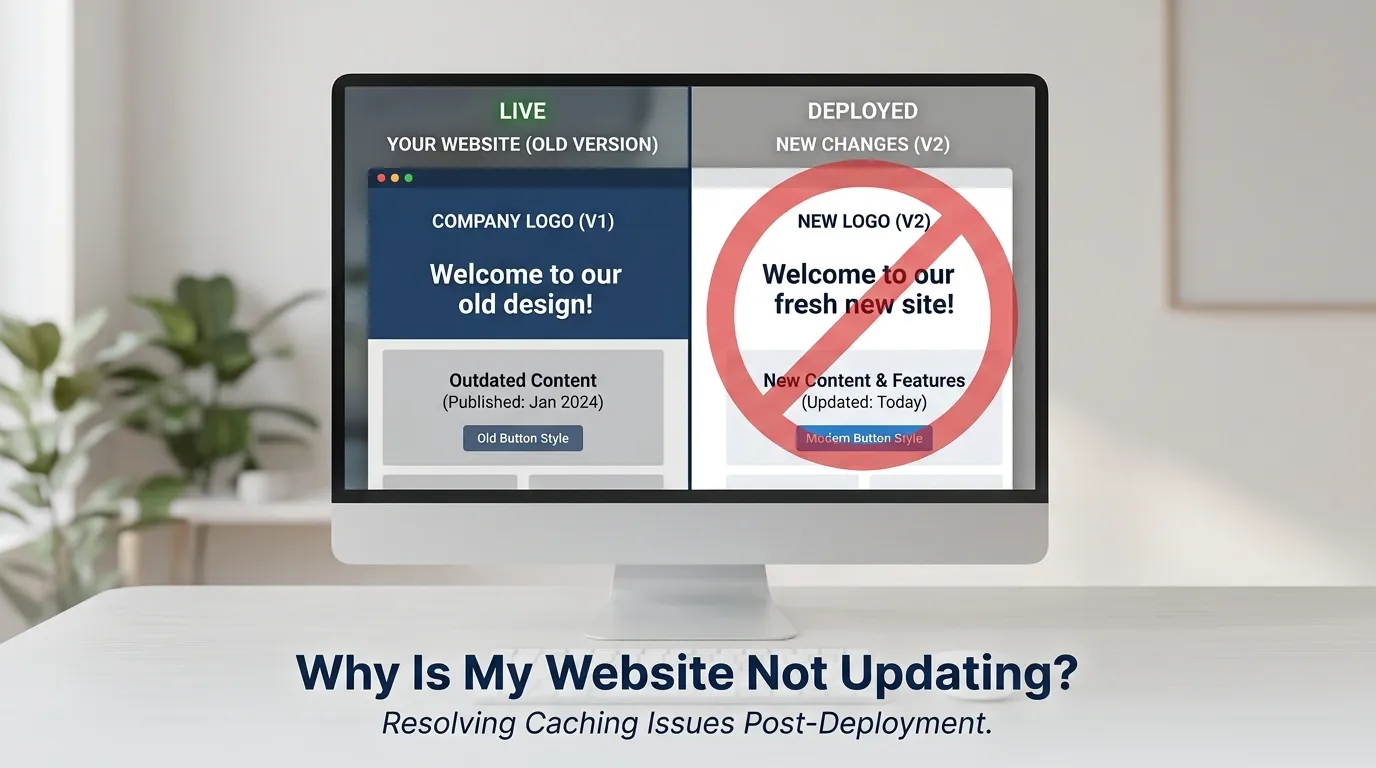
There are few things more disorienting than pushing a deployment, watching the build complete without errors, and then refreshing your browser only to see the exact same page you were trying to change. No updated headline. No new layout. The old button, the wrong color, the paragraph you deleted last Tuesday — all of it, still there.
The instinct is to blame caching immediately. And caching is often involved. But "clear your cache" is not a diagnosis — it's a guess. Stale content can come from half a dozen different places, and each requires a different fix. Clearing your browser cache won't help if the problem lives at the CDN edge. Purging the CDN won't help if the deployment went to the wrong environment. And redeploying won't help if a service worker is intercepting every request before it reaches the network.
Before clicking "purge cache" or rolling back your work, spend two minutes identifying where the stale content is actually coming from. That's what this article is for.
Understanding Why Old Content Can Come From So Many Places
Modern web delivery is layered. A single page request passes through the browser cache, possibly a service worker, one or more CDN edge nodes, a reverse proxy or load balancer, application-level caching, and finally your origin server. Any one of those layers can hold a previous version of your content and serve it as current.
Here's a quick sketch of the layers involved:
- Browser cache — The local copy your browser stored the last time it loaded the page or asset.
- Service worker cache — A programmable cache controlled by JavaScript running in the browser background, completely separate from the regular browser cache.
- CDN cache — Copies of your content stored at edge nodes distributed globally to reduce latency and origin load.
- Server-side caching — Application-level caching such as Redis, Memcached, full-page cache plugins, or framework-level caching like Next.js ISR.
- DNS propagation — Not caching in the traditional sense, but a related problem when infrastructure changes mean requests still route to an old server.
- The deployment itself — Sometimes the issue isn't caching at all. The new files simply didn't land where you think they did.
The First Question to Ask: Is Anyone Else Seeing the Old Version?
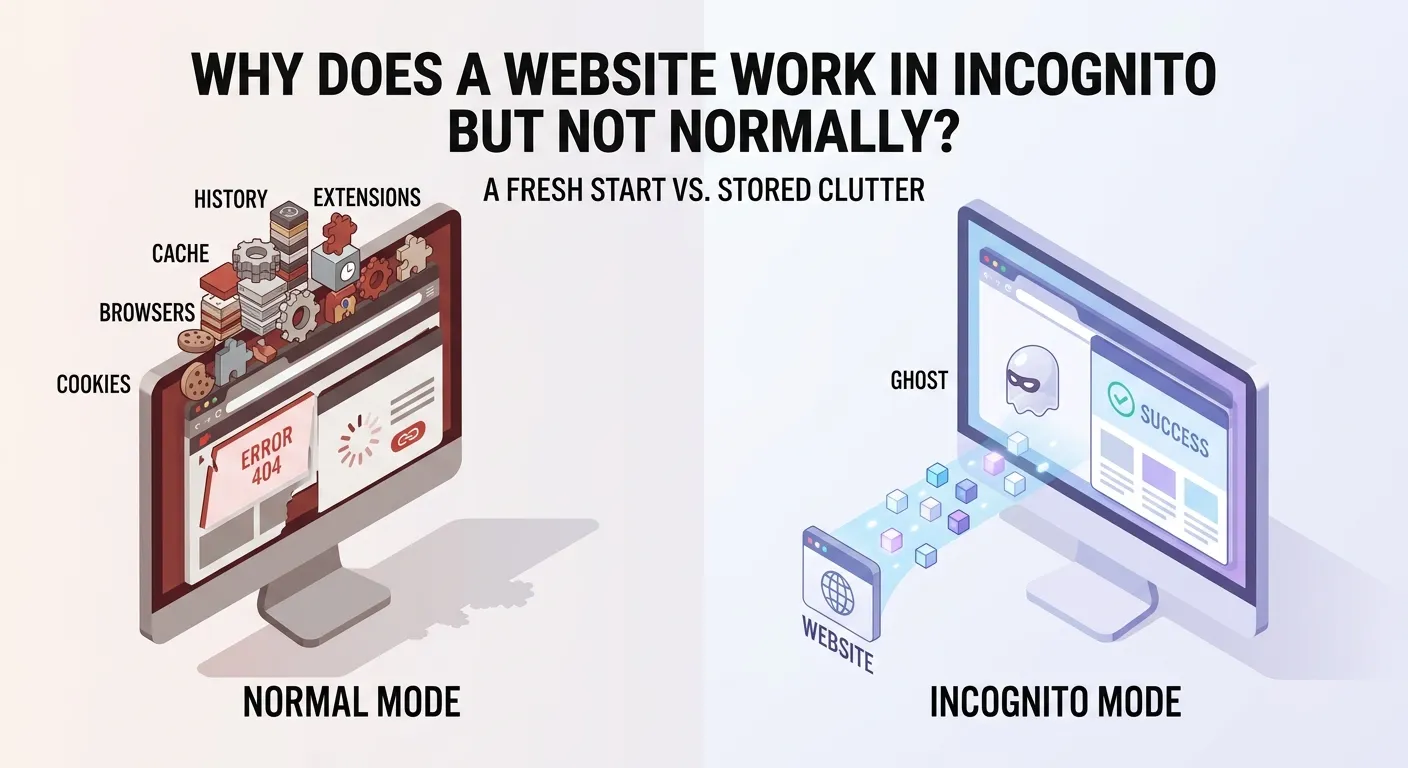
Before touching a single setting, check whether stale content is specific to your browser or visible to everyone. Open your site in a private or incognito window. If the new version appears there, your regular browser session is holding a local cached copy — solvable with a hard refresh or cache clear.
If the incognito window also shows the old version, the problem lives upstream. Open the Network tab in DevTools, check "Disable cache," and reload. Look at the response for the main document. Is the HTML already updated, or is the server still returning old markup?
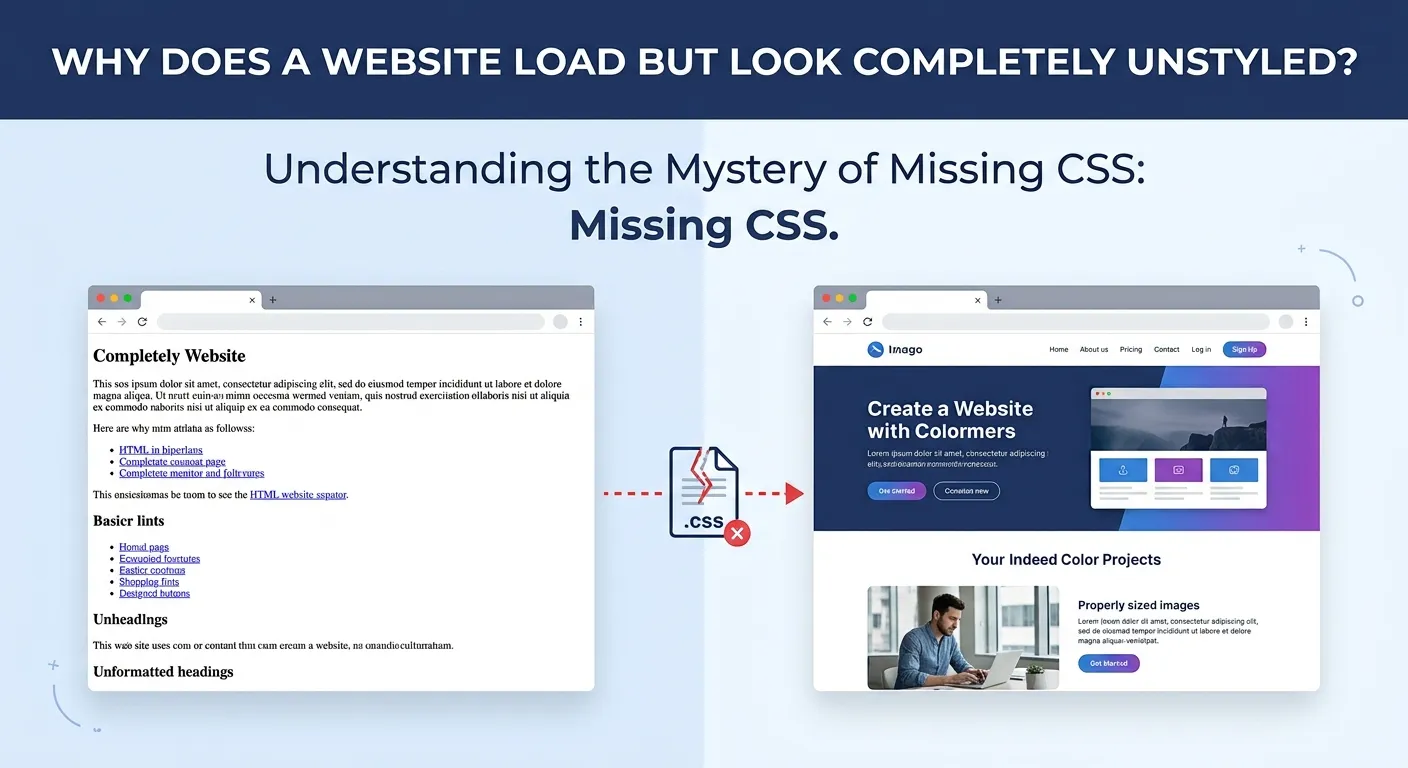
If the HTML response is correct but the page looks wrong, the issue is likely cached JavaScript or CSS assets. If the HTML itself is stale, the problem is happening before the browser — at the CDN, the application cache, or the deployment layer. That distinction immediately narrows your investigation.
When the CDN Is the Culprit
If DevTools confirms the HTML response is still old even with browser cache disabled, your CDN is the most likely suspect. CDNs cache aggressively by design — the same behavior that makes your site fast is what makes your deployment feel invisible.
Check the response headers in DevTools for these key values:
- X-Cache or CF-Cache-Status — A value of HIT on Cloudflare, or X-Cache: Hit from cloudfront on AWS, means the CDN served a cached copy without contacting your origin.
- Age — Tells you how old the cached response is in seconds. A high value means your new deployment hasn't replaced the edge copy yet.
- Cache-Control — The instruction your server sent the CDN about how long to cache content. A max-age of 86400 means the CDN will honor that 24-hour window regardless of your deployment.
Once confirmed, you have two paths. The immediate fix is a manual cache purge through your CDN dashboard or API — Cloudflare calls it "Purge Cache," CloudFront calls it an "Invalidation." Purges typically propagate globally within seconds to a few minutes.
The longer-term fix is automating the purge as part of your deployment pipeline. If you're doing manual purges every time you deploy, that's a workflow gap worth closing. The purge should be as automatic as the build itself.
Server-Side Caching: The Layer Most Developers Forget
Even after clearing the CDN and browser cache, some deployments still serve stale content — because the problem isn't at the network level at all. It's happening inside the application itself.
Server-side caching takes many forms. WordPress sites with plugins like WP Rocket maintain their own cached HTML files on disk. Next.js with Incremental Static Regeneration holds previously rendered pages and only rebuilds them based on revalidation intervals, not when you deployed. Laravel has route and view caching. Redis and Memcached can hold stale data well after the underlying records have been updated.
The diagnostic here is distinct. If the CDN is returning a fresh copy from origin — CF-Cache-Status shows MISS, or you're hitting the origin directly — but the response still contains old content, the stale copy is being generated by the application layer itself.
Framework-Specific Behaviors Worth Knowing
Next.js ISR catches many developers off guard. When you deploy a new version, statically generated pages don't automatically invalidate. If you've set a revalidation period of 3600 seconds, the old version continues to be served until that timer expires — even with new code fully deployed. The fix is using on-demand revalidation via revalidatePath or revalidateTag, or reducing the revalidation interval around deployment windows.
Similarly, if you're running a PHP-based CMS and have deployed updated templates, a caching plugin holding a complete HTML snapshot means your new templates won't appear until that cache is cleared from within the application — not from the CDN, not from the browser, but from the CMS's own cache interface or CLI. These are separate systems and need to be cleared separately.
Map out your application's caching layers before deployment, not after things break. Know whether your application has a page cache, object cache, or query cache, and make clearing them part of your deployment checklist.
Deployment Verification: Did the Right Files Actually Land?
There's an uncomfortable scenario that gets less attention than caching: the deployment appeared to succeed, but the new files didn't end up where you think they did. The old version isn't cached — it's simply still the file on disk because the new version was deployed to the wrong environment, server, or directory.
This is especially common in setups with multiple environments where the deployment target is configured in a CI/CD pipeline and can quietly point to the wrong destination without producing any visible error. Everything looks green, and yet production didn't receive a single new file.
Verify this by looking for something unique and unambiguous in your new deployment — a version comment in your HTML source, a specific string in a JavaScript bundle, a timestamp in a meta tag. View the page source directly at the origin, bypassing the CDN, and search for that string. If it isn't there, stop investigating caching and start looking at your deployment configuration: which server the deploy step is targeting, whether credentials are correct, and whether file paths match the actual directory structure.
Also check whether your host uses atomic deployments, where a symlink is swapped to point to the new release directory. If the symlink swap fails silently, your application may still be serving the previous release even though new files exist on disk elsewhere.
Service Workers: The Silent Cache You May Have Forgotten
If your site uses a Progressive Web App setup or has ever had one installed, a service worker may be running in the background — intercepting every page request before it reaches the network at all. This means a CDN purge, a server-side cache clear, and a hard refresh can all complete successfully while a service worker quietly serves the version it cached six deployments ago.
To check, open Chrome DevTools, go to the Application tab, and look under Service Workers. If one is registered for your origin, it's active. You can force an update from there, or clear its cache under Cache Storage. During development, enabling "Update on reload" ensures the service worker updates on every reload rather than waiting for its own update cycle.
If users report seeing an old version and you've confirmed everything on the infrastructure side is current, a stale service worker is a strong candidate. The long-term fix is ensuring your service worker includes proper versioning and graceful update logic so new versions take control promptly rather than waiting indefinitely for all existing tabs to close.
Stopping the Guesswork Before It Starts
Post-deployment caching problems feel chaotic because most teams only think about them after something breaks. The more durable approach is to treat cache invalidation as a first-class part of your deployment process: know which caching layers your stack uses, automate CDN purges in your CI/CD pipeline, include a verification step confirming new content is reachable at the origin, and document the correct clear sequence for your application's server-side cache so anyone on the team can execute it without guessing.
Build the diagnostic habit: incognito window first, then DevTools Network tab with cache disabled, then response headers, then origin verification. Run through those steps in order and you'll identify the problem layer within minutes. The old version on your screen is always coming from somewhere specific. The work is simply knowing how to find it.
Deployments that feel invisible are almost never permanent and almost never mysterious — they just require a methodical read of the layers between your code and your visitor's screen. Once you've mapped those layers for your own stack, the problem stops being frightening and starts being mechanical. That's a good place to be.