Why Does a Website Work in Incognito but Not Normally?
What Incognito Mode Is Actually Telling You
You open a website and something goes wrong — it won't load, the layout is broken, you're stuck in a login loop, or you're staring at content you know should have changed weeks ago. Out of curiosity or habit, you open an incognito window, type the same address, and everything works perfectly. It feels strange. Why would the same browser, on the same device, connected to the same internet, behave so differently depending on which window you use?
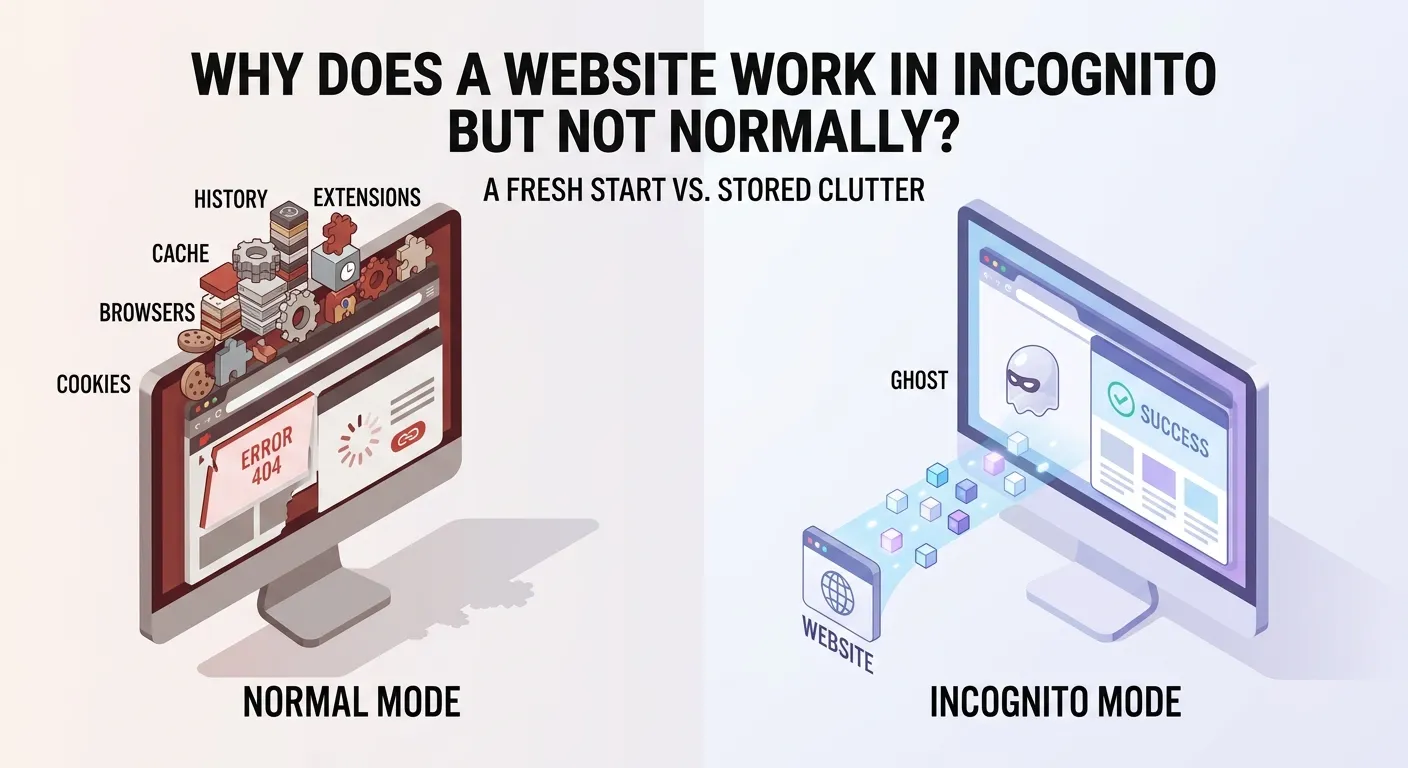
The short answer is that incognito mode starts with a much cleaner slate. It doesn't carry your stored data, your installed extensions usually don't run, and it has no accumulated history of how your browser has interacted with that site. When a website works in private mode but not in your regular browser, that contrast is diagnostic. It's pointing a finger directly at something stored, enabled, or configured in your normal browser profile — not necessarily at the website itself, and not necessarily at your internet connection.
That distinction matters. A lot of troubleshooting advice jumps straight to "clear your cache and cookies" without explaining the reasoning. But if you understand why incognito behaves differently, you can diagnose the problem more precisely, fix it more efficiently, and avoid wiping data you don't need to wipe.
The Most Common Reasons a Site Only Works in Incognito
There are several distinct mechanisms that separate a normal browser session from a private one, and any of them can be responsible for the difference you're seeing. They're not equally likely in every case, but knowing what each one does helps you test in the right order.
Stale or Corrupted Cache
Your browser caches files — HTML pages, images, JavaScript, CSS stylesheets — so that returning to a site loads faster. Most of the time this works exactly as intended. But cached data can become stale, meaning your browser is serving you an old version of a file even though the website has since updated it. In worse cases, a cached file can become corrupted, causing loading errors or broken layouts that look nothing like the actual problem.
Private browsing uses a separate, temporary browsing context rather than your normal persistent browsing data. So it usually won't reuse the same site data and stored state that your regular session has accumulated. So if a page renders correctly in a private window but shows a broken layout or outdated content in your regular browser, a stale or corrupted cached resource is a very likely cause — particularly for issues involving visual layout, missing functionality, or content that seems frozen in time.
Cookies and Session Data
Cookies are small pieces of data that websites store in your browser, typically to remember who you are, keep you logged in, or preserve preferences. When a cookie becomes outdated — for example, after a website has been redesigned, changed its authentication system, or updated how sessions are handled — that old cookie can actively interfere with how the site loads or behaves.
This is a surprisingly common source of the "site breaks with cookies enabled" problem. Your browser presents credentials or session identifiers that the site no longer recognizes or that conflict with its current logic. The site may try to redirect you, throw an error, or partially load before failing. Incognito starts with no cookies for that site, so it avoids the conflict entirely. A new login session is created from scratch, and everything works.
Browser Extensions
By default, most browser extensions don't run in incognito mode unless you've explicitly enabled them. This makes private browsing a natural test environment for extension-related conflicts. Ad blockers, privacy tools, script blockers, VPN extensions, and even some productivity tools can interfere with how a website loads — blocking requests the site depends on, injecting code that conflicts with the page, or stripping headers that the server expects to receive.
If a website works in incognito but fails in your normal browser, and you have several extensions installed, this is one of the first things worth testing. It doesn't require clearing any data — just temporarily disabling your extensions tells you a great deal about whether one of them is responsible.
Local Storage and Site Data Beyond Cookies
Cookies get most of the attention, but modern websites store data in other ways too. Local storage, session storage, and IndexedDB are all mechanisms that sites can use to persist information in your browser. Unlike cookies, these don't get sent to the server with every request — but they do influence how a site behaves on the client side. Corrupted or conflicting entries in local storage can cause a site's JavaScript to fail silently, rendering the page non-functional in ways that are genuinely difficult to diagnose without knowing where to look.
Service Workers and Their Cached Resources
Service workers are a less obvious but increasingly relevant cause. They're background scripts that a website installs in your browser to enable features like offline access or faster loading through fine-grained caching control. The problem is that a service worker can serve cached responses even when you think you're getting a fresh version of a page. If the service worker itself is outdated or has cached broken resources, it can intercept your requests and deliver faulty content — while the site works perfectly for someone with no service worker installed, including you in incognito mode.
This is one of the trickier causes to identify because it doesn't behave like ordinary caching and doesn't respond to a standard cache clear in the way you might expect.
Understanding these underlying mechanisms makes the troubleshooting process far more deliberate. Rather than trying things at random, you can work through them in an order that's both practical and low-risk — starting with steps that reveal information without changing anything, and moving toward more interventional fixes only when needed. That's exactly where the diagnostic process begins.
How to Actually Diagnose the Problem Step by Step
Knowing the possible causes is only half the job. The other half is working through them in a way that gives you clear answers rather than creating new confusion. The key principle here is to test before you change anything. Deleting data or disabling things indiscriminately can solve the problem while hiding which thing actually caused it — which means you're no better equipped the next time it happens.
Start by Isolating Extensions
Because disabling extensions costs you nothing and risks nothing, it's the most efficient first move. Open your browser's extension manager and turn them all off temporarily, then reload the page in your regular browser window. If the site now works, you've confirmed an extension is the culprit. Re-enable them one at a time, reloading the page after each one, until the problem returns. The last extension you re-enabled is your answer.
Ad blockers and content-filtering extensions are common things to test first because they can block requests, scripts, or page elements that a website depends on. Password managers can inject scripts into pages. VPN extensions can reroute requests in ways that confuse authentication systems. Even language tools and reading-mode extensions can strip elements that certain sites depend on to function correctly.
Check for Service Workers Before Clearing Your Cache
If disabling extensions doesn't resolve the issue, the next step most people reach for is clearing their cache — but it's worth checking your service workers first, because the fix is different and more targeted. In Chrome-based browsers, you can navigate to the developer tools, open the Application panel, and find a dedicated section listing any service workers registered for the site you're on. From there, you can unregister them directly without touching anything else.
This matters because a standard cache clear, even an aggressive one, doesn't always remove service worker caches. They exist in a separate storage layer. If clearing the site's stored data doesn't resolve the problem, a service worker is one additional possibility worth checking—especially for web apps that use offline features or aggressive client-side caching.
Clear Cache and Cookies with Surgical Precision
Once you've ruled out extensions and service workers, clearing cached data is the right move — but you don't necessarily need to wipe everything across all time. Most browsers allow you to clear data for a specific site rather than your entire browsing history. This is worth doing deliberately, because clearing cookies globally will log you out of every service you use, which is a significant inconvenience when only one site is causing trouble.
In Chrome, you can click the padlock or information icon in the address bar, navigate to site settings, and delete stored data specifically for that domain. Firefox offers similar granularity through its protection settings panel. This targeted approach removes the conflicting cookies, cached files, and local storage entries associated with the problematic site while leaving everything else untouched. Reload the page afterward and you're effectively in the same clean-slate position as incognito — but within your normal browser profile, with all your extensions still configured as you prefer them.
When the Problem Isn't Your Browser at All
There's a scenario worth acknowledging where none of the above steps make a difference, and that's because the issue isn't actually stored data or extensions — it's something about your browser profile itself, or occasionally something about your network configuration that behaves differently depending on context.
Profile Corruption and Settings Drift
Browser profiles accumulate configuration over time. Preferences, permissions granted to specific sites, custom security settings, and flags you may have toggled at some point can all interact in ways that produce unexpected behavior. A permission that seemed harmless when you granted it — allowing a site to run in the background, for example, or trusting a particular certificate — can become a source of conflict after a site update changes how it handles those permissions.
If clearing site data and disabling extensions doesn't resolve the issue, creating a fresh browser profile and testing the site there is a meaningful diagnostic step. It's more drastic than targeted cleaning, but less drastic than reinstalling the browser entirely, and it tells you whether the problem is embedded somewhere in your profile's accumulated configuration rather than in a specific piece of stored data.
DNS Caching Outside the Browser
Your browser isn't the only thing that caches data relevant to how websites load. Your operating system maintains its own DNS cache, which maps domain names to IP addresses. If a site has recently migrated to new servers or changed its infrastructure, your system-level DNS cache might still be pointing requests at the old address — If the site also behaves differently across browsers, devices, or networks, investigate the network path rather than assuming the browser is responsible. DNS problems can occur when a domain has recently changed servers or DNS records, but Incognito by itself does not reliably bypass your operating system or network DNS cache. Try the site from another network, such as a mobile hotspot. If it works there but not on your normal connection, the problem may be related to DNS, routing, filtering, or the network itself.
Flushing your system DNS cache is a straightforward process on any major operating system and doesn't affect any browser data or stored credentials. It's worth doing if you've worked through the browser-level possibilities without success, particularly if the site in question has had any recent infrastructure changes or if you're seeing intermittent failures rather than a consistent one. The fix is quick, reversible, and often overlooked precisely because most troubleshooting instincts stop at the browser.
What the Incognito Test Has Actually Taught You
By the time you've worked through the steps above, something more useful than a fixed website has happened. You've learned to read a browser's behavior as diagnostic information rather than treating it as an arbitrary malfunction. The incognito test isn't a workaround — it's a method. It isolates variables that most people never think about because, most of the time, those variables behave perfectly.
The pattern is worth internalizing: when a website behaves differently depending on the session context, the problem lives in the gap between those two contexts. That gap contains your cached files, your cookies and local storage, your extensions, your service workers, and your profile configuration. Each one of those layers is legible if you know what you're looking at, and each one has a targeted fix that doesn't require burning down everything else to reach it.
This matters beyond the immediate inconvenience of a broken page. Browsers can accumulate extensions, permissions, stored site data, and configuration changes over time. Occasionally, those differences can contribute to unexpected website behavior. Periodic, deliberate maintenance — clearing site-specific data for domains you no longer use, auditing your extensions, and being intentional about what you allow sites to store — keeps the gap between your normal browser and a clean session narrow. When that gap is narrow, the incognito test stops being a dramatic difference and starts being a minor one.
For anyone who wants to go deeper on how browsers manage stored data and what the cookie lifecycle actually looks like from a technical standpoint, Mozilla's documentation is thorough and well-maintained. If service workers are the specific piece you want to understand better, Google's web.dev guide to service workers explains exactly how they intercept requests and why they can behave so unexpectedly when they go stale. And for a practical reference on flushing your DNS cache across different operating systems, Cloudflare's DNS learning center covers the underlying concepts clearly enough to make the process feel grounded rather than mechanical.
The next time a site works in incognito and nowhere else, you won't need to guess. You'll know exactly where to look and in what order — and more often than not, the fix will take minutes rather than the kind of frustration that ends with a full browser reinstall and no clearer understanding of what went wrong.